
Free Online Audio Silence Remover
Remove silence from audio online for free. Automatically shorten unwanted pauses in MP3 and WAV files directly in your browser.
Remove Silence From Audio
Shorten unwanted pauses in MP3, WAV and M4A files—right in your browser.
Your processed audio will appear here
Upload an audio file to begin.
🔒 Your audio stays on your device and is processed privately in your browser.
Remove Silence From Audio Online for Free
Long pauses can make a voice recording feel slow, unpolished, and difficult to edit. Our free online audio silence remover helps you shorten unwanted silent sections in MP3, WAV, and supported M4A files directly in your browser. There is no signup, no paid API, and no need to install audio-editing software.
The tool is useful for podcasts, YouTube narration, online lessons, interviews, presentations, voice notes, and AI-generated voiceovers. Upload your file, choose how much silence you want to keep, process the recording, preview the result, and download the cleaned audio as a WAV file.
What Is an Audio Silence Remover?
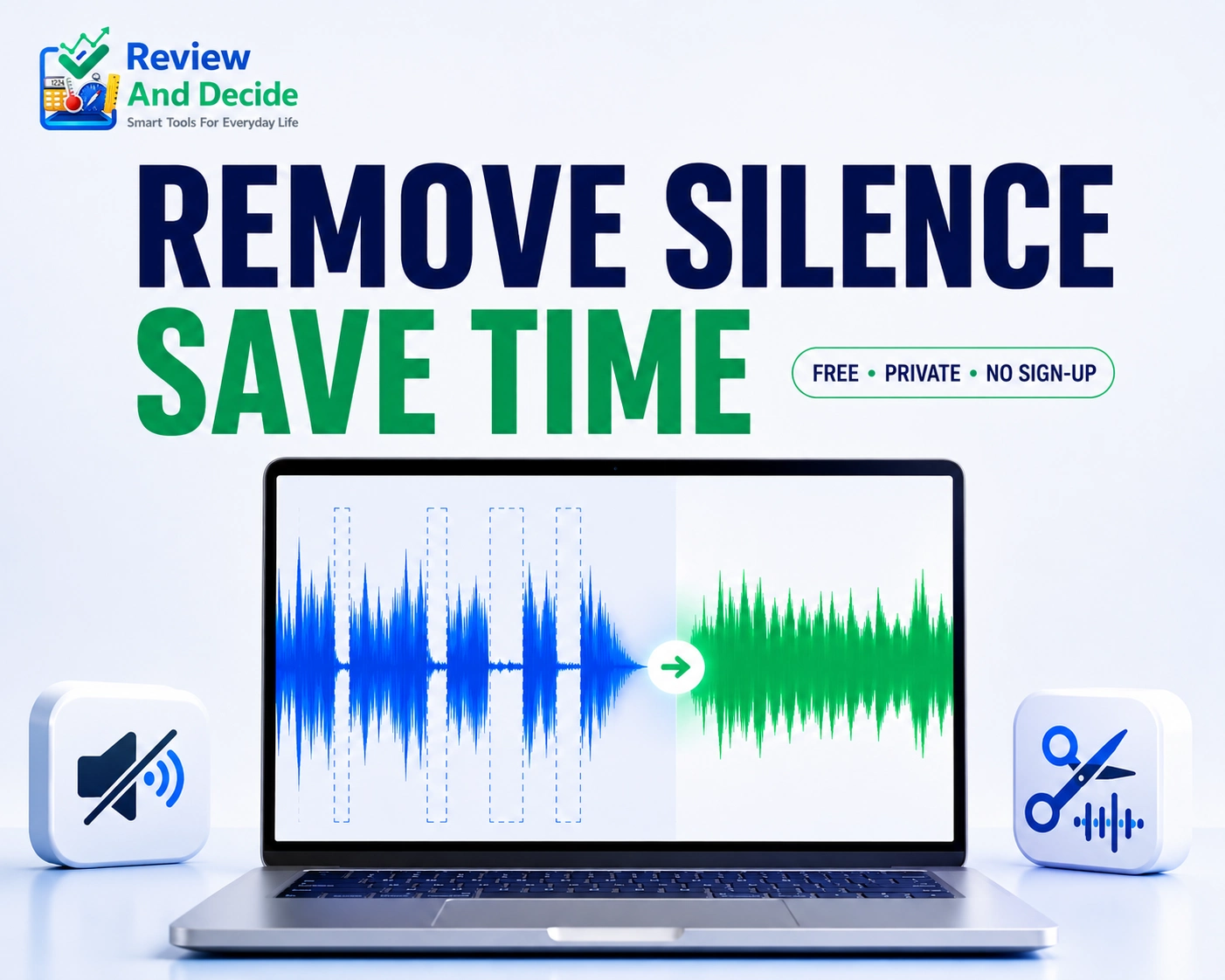
An audio silence remover detects low-volume sections in a recording and shortens silent gaps that last longer than a minimum period. It does not delete spoken words intentionally. Instead, it targets pauses where the audio level remains below the detection threshold.
Some pauses are useful because they make speech sound natural. For this reason, the tool lets you keep a small amount of silence between spoken sections. A setting of 0.20 seconds is a practical starting point for most narration and voiceover recordings.
How to Remove Silence From Audio
Step 1: Upload your audio
Drag and drop an MP3, WAV, or supported M4A file into the upload area, or click the box to select a file from your device.
Step 2: Preview the original recording
Use the audio player and waveform to confirm that you selected the correct file.
Step 3: Choose the silence setting
Start with 0.20 seconds for balanced, natural-sounding narration.
Step 4: Select Remove Silence
The tool analyzes the recording and shortens qualifying silent gaps inside your browser.
Step 5: Compare the durations
Review the original duration, processed duration, and total time removed.
Step 6: Preview and download
Listen to the processed audio before downloading the new WAV file.
Which Silence Setting Should You Use?
The best setting depends on the pace and purpose of your recording:
0.15 seconds: Fast-paced short videos, social clips, and energetic voiceovers.
0.20 seconds: Recommended for YouTube narration, tutorials, and most spoken-word recordings.
0.30 seconds: Calm storytelling, educational content, and conversational podcasts.
0.40 seconds or longer: Recordings where dramatic or thoughtful pauses are important.
Always preview the output. If the speech sounds rushed, increase the amount of silence kept. If pauses still feel too long, reduce the setting gradually.
Why Remove Silent Gaps?
Removing excessive silence can reduce editing time and produce a tighter listening experience. It may also make it easier to align narration with video scenes, slides, captions, or screen recordings.
Create smoother voiceovers for YouTube and social media videos.
Reduce unnecessary pauses in podcast and interview recordings.
Prepare cleaner narration before importing it into a video editor.
Shorten lectures, presentations, and training recordings.
Improve the pacing of AI-generated or text-to-speech audio.
Reduce the total duration of recordings that contain long silent sections.
Private Browser-Based Audio Processing
Your audio is processed locally in your web browser. The file is not intentionally uploaded to Review And Decide for silence removal. This approach provides faster processing for many recordings and gives you greater control over your content.
Processing speed depends on your device, browser, audio duration, file size, and available memory. Very large recordings may take longer or may not process successfully on older phones and computers.
Supported Audio Formats and Output
The tool is designed for common audio formats, including MP3 and WAV. M4A support depends on whether your browser can decode the particular file. The processed result is downloaded as a WAV file to preserve broad compatibility and avoid reliance on a paid conversion service.
If a file cannot be opened, try converting it to MP3 or WAV first. For the best experience, use a modern version of Chrome, Edge, Firefox, or Safari.
Important Limitations
This tool shortens silent or very quiet sections; it is not a complete audio restoration system. It does not automatically remove background music, echo, clicks, traffic, room noise, or another person speaking. Background noise can also make true silence harder to detect.
Recordings with very quiet speech may require extra care. Preview the processed result and keep the original file until you are satisfied. Do not use the tool to process audio you do not own or do not have permission to edit.
Tips for Better Results
Use a clean recording with consistent voice volume.
Begin with 0.20 seconds instead of choosing the shortest possible pause.
Wear headphones when checking whether any words sound clipped.
Process a short test recording before editing a long file.
Keep a copy of your original recording.
For noisy audio, reduce background noise before removing silence.
Who Can Use This Tool?
The audio silence remover is suitable for content creators, podcasters, teachers, students, marketers, remote teams, journalists, and anyone working with spoken audio. It can also help creators prepare narration before using CapCut, Premiere Pro, DaVinci Resolve, or another audio or video editor.
Frequently Asked Questions
Is the audio silence remover free?
Yes. You can use the tool without creating an account or paying for an API.
Is my audio uploaded to a server?
The silence-removal process runs locally in your browser. Your selected audio is not intentionally uploaded to Review And Decide for processing.
Does the tool remove background noise?
No. It targets silent or very quiet gaps. It is not designed to remove music, echo, hiss, traffic, or other background sounds.
Will it cut words from my recording?
The tool is designed to preserve audible sections, but unusually quiet speech may be mistaken for silence. Always preview the result before downloading or publishing it.
What is the best setting for voiceovers?
Start with 0.20 seconds. Use 0.15 seconds for faster pacing or 0.30 seconds for a calmer, more natural delivery.
Which formats are supported?
MP3 and WAV are recommended. Supported M4A files may also work, depending on the browser and encoding. The processed download is provided as WAV.
Why did the tool remove only a small amount of time?
The recording may contain few silent gaps, or background noise may keep the sound level above the silence threshold.
Can I use it on a phone?
Yes, on many modern mobile browsers. Large files may process more reliably on a desktop or laptop with more available memory.
Is there a maximum file size?
The current tool accepts files up to 50 MB. Shorter and smaller files generally process faster.
Related Tools
Continue your workflow with these Review And Decide utilities:
MP3 to Text Converter — turn spoken audio into editable text.
Text to Speech Tool — create narration from written content.
YouTube Transcript Tool — extract readable transcript text from supported videos.
Disclaimer
This free tool is provided for general audio-editing purposes. Silence detection is based on audio volume levels and may not produce identical results for every recording. Quiet speech may occasionally be identified as silence, especially in recordings with inconsistent volume or background noise.
Always preview the processed audio and keep a backup of your original file. Review And Decide does not guarantee that every silent section will be detected or that all spoken words will be preserved in every recording.
The tool does not remove background noise, music, echo, hiss, or other unwanted sounds. Users are responsible for ensuring they have the necessary ownership, license, or permission to process and download any audio submitted to the tool.
Privacy Notice
Audio processing takes place locally in your browser. Your selected audio file is not intentionally uploaded to or stored on Review And Decide’s server for silence removal. Processing performance may vary according to your browser, device, available memory, audio format, duration, and file size.
Technical References
- Web Audio API — MDN Web Docs
Technical information about browser-based audio processing, audio buffers, waveforms, and supported web-audio capabilities. - BaseAudioContext: decodeAudioData() — MDN Web Docs
Explains how browsers decode complete audio files into audio-buffer data for local processing. - Google AdSense Ad Placement Policies
Official guidance on keeping advertisements clearly separated from interactive content and preventing accidental ad clicks.